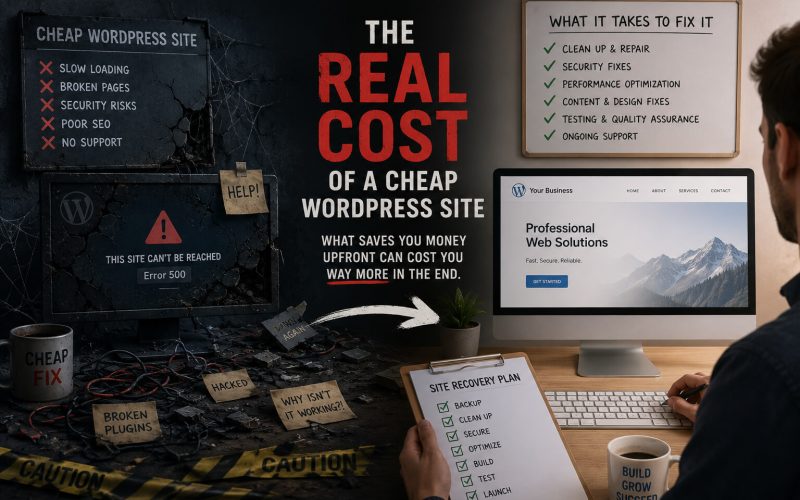
Your WordPress site is down. Maybe you’re seeing a white screen. Maybe it’s a 500 error, a database connection error, or just nothing at all. Whatever it is, it happened at the worst possible time — it always does.
Here’s a step-by-step approach to diagnosing what went wrong and getting back online, even if you’re not a developer.
First: Confirm It’s Actually Down
Before anything else, check whether the problem is on your end or the server’s. Visit downforeveryoneorjustme.com and enter your URL. If it’s just you, try clearing your browser cache or loading the site on your phone with WiFi turned off. DNS changes and aggressive caching can make a working site appear broken from a specific device or network.
If it’s confirmed down for everyone, move to the next steps.
Check What Changed Recently
Most WordPress outages happen immediately after something changes. Think back over the last 24–48 hours:
- Was a plugin updated?
- Was WordPress core updated?
- Did you or someone else edit a theme file or functions.php?
- Did your hosting provider send any maintenance notifications?
- Did a domain or hosting payment lapse?
The answer to what broke your site is almost always in that list.
Read the Error Message
WordPress error messages are more helpful than they look. Here’s what the most common ones mean:
White Screen of Death (WSOD)
A completely blank white page usually means a PHP fatal error — most often caused by a plugin or theme that’s incompatible with your current PHP version, or a syntax error in a file that was recently edited. Enable WordPress debug mode by adding these lines to your wp-config.php:
define( 'WP_DEBUG', true );
define( 'WP_DEBUG_LOG', true );
define( 'WP_DEBUG_DISPLAY', false );
Then check /wp-content/debug.log for the actual error. It will tell you exactly which file and which line caused the problem.
Error Establishing a Database Connection
This means WordPress can’t connect to your MySQL database. The most common causes are: incorrect database credentials in wp-config.php, the database server is down, or your database has become corrupted. Log into your hosting control panel and check whether your database is listed and accessible. If your credentials haven’t changed and the database is there, contact your host — this is often a server-side issue they need to resolve.
500 Internal Server Error
A 500 error is a catch-all that means something went wrong on the server but it’s not being specific about what. Check your server’s error log — in cPanel this is under Logs → Error Log. Look for the most recent entries. A corrupted .htaccess file is a frequent cause: try renaming it to .htaccess_backup via FTP and reloading the site. If that fixes it, go to Settings → Permalinks in WordPress admin and save — this regenerates a clean .htaccess.
Too Many Redirects
This usually means your site URL settings in WordPress don’t match your actual URL, or an SSL configuration is conflicting with a redirect rule. Check Settings → General in WordPress admin and confirm the WordPress Address and Site Address match your actual URL exactly, including whether it uses https:// or http://.
Deactivate All Plugins
If you can still access WordPress admin, go to Plugins and deactivate everything. If the site comes back, reactivate plugins one at a time until it breaks again — that’s your culprit.
If you can’t access admin because the site is fully down, connect via FTP or your hosting file manager and rename the /wp-content/plugins/ folder to something like /wp-content/plugins-disabled/. WordPress will deactivate all plugins automatically. Once the site loads, rename the folder back and reactivate plugins one at a time.
Switch to a Default Theme
If deactivating plugins doesn’t resolve it, the active theme may be the problem. Via FTP, rename your active theme folder inside /wp-content/themes/. WordPress will fall back to a default theme. If the site loads, the theme is the issue.
Restore From a Backup
If you’ve exhausted the above steps and can’t identify the cause, restoring from a recent backup is often the fastest path back to a working site. This is why backups matter — not as an insurance policy you hope you never need, but as a recovery tool you should know how to use before you’re in a crisis.
Most managed WordPress hosts (WP Engine, Kinsta, Flywheel) have one-click restore from the hosting dashboard. If you use a backup plugin like UpdraftPlus, the restore process is in the plugin settings.
When to Call for Help
If you’ve worked through these steps and the site is still down, or if you’re uncomfortable accessing files via FTP and editing configuration files, it’s time to bring in a developer. A good WordPress developer should be able to diagnose and resolve most common outages within an hour or two. The longer a site stays down, the more it costs — in lost traffic, lost leads, and lost trust. Don’t let pride or cost hesitation extend the downtime.