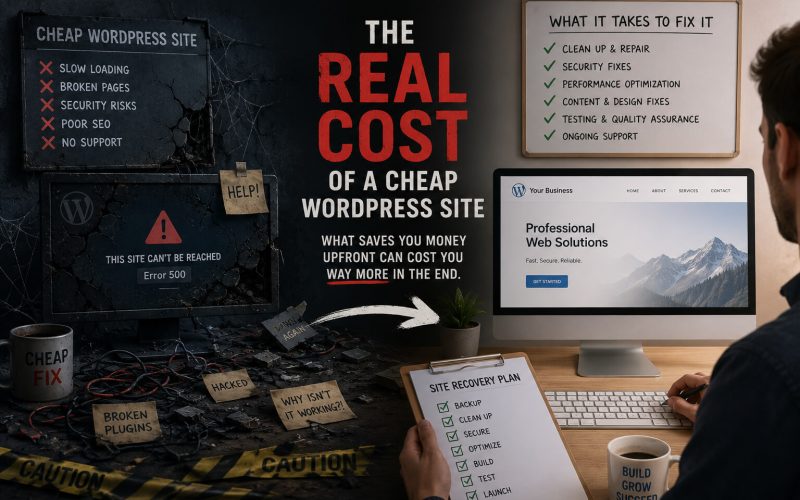
You ran Google PageSpeed Insights and got a score in the 30s. Or your site just feels sluggish — pages take three seconds to load, images drag in late, and something always feels off. You’re not imagining it, and it’s not your internet connection.
WordPress sites slow down for specific, diagnosable reasons. Here’s how to find what’s actually causing it and what fixes make a real difference versus what’s just noise.
Start With a Baseline Measurement
Before changing anything, get a real number. Google PageSpeed Insights is fine for a quick look, but GTmetrix and WebPageTest give you more detail — waterfall charts, time to first byte, and exactly which resources are blocking the page from rendering.
Run the test three times and average the results. A single test can be skewed by a cold server cache. Note your Largest Contentful Paint (LCP) and Time to First Byte (TTFB) — these are the two numbers that matter most for both user experience and Google rankings.
The Most Common Culprits
Your Hosting Is the Floor Everything Else Sits On
Shared hosting puts your site on a server with hundreds of other sites competing for the same resources. If your neighbor gets a traffic spike, your site slows down. No amount of optimization fully compensates for an underpowered server.
If your Time to First Byte is consistently above 600ms, your hosting is likely the problem. Managed WordPress hosts like WP Engine, Kinsta, or Cloudways are significantly faster than shared hosting and include server-level caching that shared hosts don’t offer.
Unoptimized Images
Images are the single most common cause of slow WordPress sites. A full-size 4MB photo uploaded directly from a camera and displayed at 800px wide is loading four times more data than necessary.
WordPress generates multiple image sizes automatically, but it won’t compress images on upload unless you tell it to. Install a compression plugin — EWWW Image Optimizer or ShortPixel — and run it on your existing media library. Then enable lazy loading so images below the fold don’t block the initial page render.
Too Many Plugins Doing the Same Thing
Every plugin adds code that runs on every page load. Some add their own CSS and JavaScript files regardless of whether the current page needs them. A site with 40 plugins is almost always slower than a site with 15 that do the same things.
Go to your plugins list and ask honestly: is this being used? Is there a lighter alternative? A contact form plugin that loads its scripts on every page — including pages with no form — is dead weight. Most well-built plugins let you control which pages they load on.
No Caching
WordPress builds each page dynamically by querying the database and assembling PHP templates on every request. Caching saves a static version of that output and serves it directly, skipping the database entirely for repeat visitors.
If you’re on managed WordPress hosting, server-level caching is usually included and already configured. If you’re on shared hosting, a plugin like WP Fastest Cache or W3 Total Cache handles this. Do not install multiple caching plugins — they conflict with each other.
Render-Blocking Scripts and Stylesheets
Scripts loaded in the <head> of a page pause rendering until they finish downloading. If your theme or plugins are loading JavaScript synchronously in the head, the browser can’t show the page until those files are done.
The fix is to load scripts with the defer or async attribute, or move them to the footer. In WordPress, this is done through wp_enqueue_script() with the $in_footer parameter set to true. A good caching plugin will also offer script optimization options that handle this automatically.
What Not to Waste Time On
Database optimization plugins are frequently recommended and rarely make a noticeable difference on sites under a few years old. GZIP compression is almost certainly already enabled at the server level. And chasing a PageSpeed score of 100 is a distraction — a score in the 80s with fast real-world load times is more than sufficient.
Fix the hosting, compress the images, audit the plugins, and enable caching. In that order. Most slow WordPress sites are slow for one of those four reasons, and fixing them doesn’t require any specialist knowledge — just time and a methodical approach.